USB-C to HDMI Adapter for Phone: Compatibility and Black-Screen Checks
Check native video support separately from USB data speed, choose the right adapter, and understand powered docks and DisplayLink alternatives.
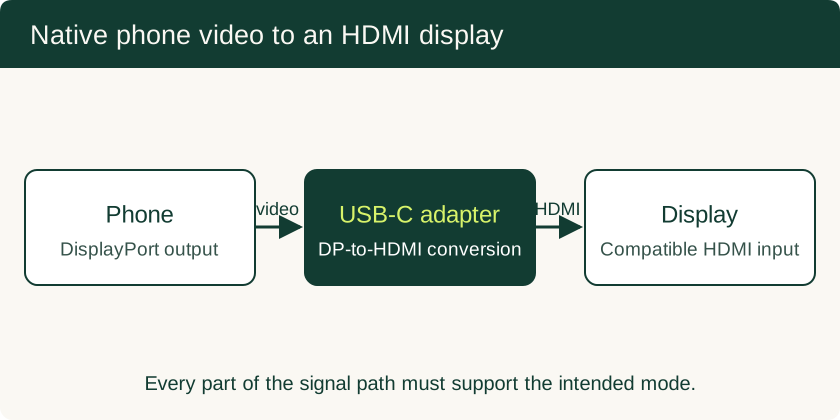
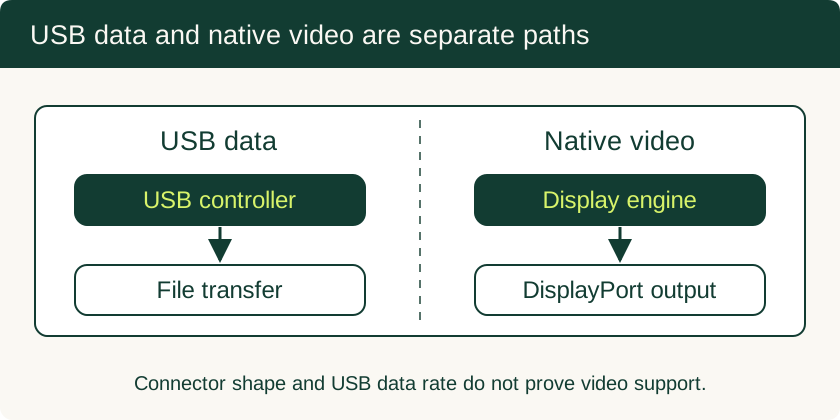
A USB-C to HDMI adapter works only when its video method matches the phone. The connector shape alone is not enough. Ordinary USB-C display adapters take native DisplayPort video from a compatible phone and convert it to HDMI. A phone can charge and transfer files through the same connector while lacking that video capability.
Look up the exact phone model in the manufacturer's external-display documentation. USB 2 data speed does not, by itself, rule out DisplayPort video; USB 3 data speed does not prove it. Apple excludes iPhone 16e and 17e from USB-C display output. A standard HDMI adapter cannot add a missing native video output.
Manufacturer compatibility reference
| Phone family | Native wired display support | Separate USB data requirement |
|---|---|---|
| iPhone 15 models; iPhone 16 except 16e; iPhone 17 except 17e | Listed by Apple for USB-C displays | Check the exact model; video support is separate from USB 3 support |
| iPhone 18 Pro models and iPhone Duo | Listed by Apple for USB-C displays | Listed for USB 3.2 Gen 2 with a compatible USB 3 cable |
| iPhone 16e and 17e | Excluded by Apple from USB-C external displays | Use a supported wireless display method instead |
| Pixel 8 and later | Google documents wired display connection | Use a compatible DisplayPort or HDMI connection and follow the phone prompt |
| Other Android models | Check the model’s manufacturer documentation | Confirm video output explicitly, including supported display modes |
Apple’s USB-C connection guide lists supported iPhones, up to 4K at 60 Hz DisplayPort output and compatible HDMI connections. Google’s Pixel projection guide describes wired projection for Pixel 8 and later. The display, adapter, cable, app and selected mode must also support the desired output.
How DisplayPort uses USB-C
VESA’s DisplayPort over USB-C overview explains that Alternate Mode reuses high-speed signal paths in the connector for DisplayPort. USB data, video and charging are separate functions negotiated by the connected devices. Some configurations reserve more lanes for video; others share the connection with high-speed USB data.
This is why a charging cable is not automatically a display cable. A direct USB-C monitor connection needs a cable supporting the required display signal. An HDMI connection needs a compatible conversion adapter and HDMI cable. A dock’s resolution claim must be read together with its host requirements and its supported combinations of display and peripheral use.
Why an ordinary adapter can show a black screen
Work through the chain in order:
- Confirm the exact handset. Find an explicit wired-display statement from the manufacturer, rather than relying on the USB-C logo or the processor specification.
- Check the adapter type. A native DisplayPort adapter and a USB graphics adapter use different signal paths. Identify which you own.
- Select the display input. Set the TV or monitor to the HDMI input used; unlock the phone and accept any projection prompt.
- Simplify the connection. Remove extra storage and other peripherals. Try a known-good HDMI cable, adapter and display one at a time.
- Separate the app from the output. If the home screen appears but one video app stays black, check the app’s external-display and protected-content restrictions.
- Check the supported mode. Start with a display mode supported by every component, then increase resolution or refresh rate if the phone allows it.
A phone limited to USB 2 data may still support native video if its display signal path exists; the base iPhone families in Apple’s display list illustrate why data speed is an unreliable shortcut. Conversely, a USB 3 controller does not make video output mandatory.
Charging through a dock
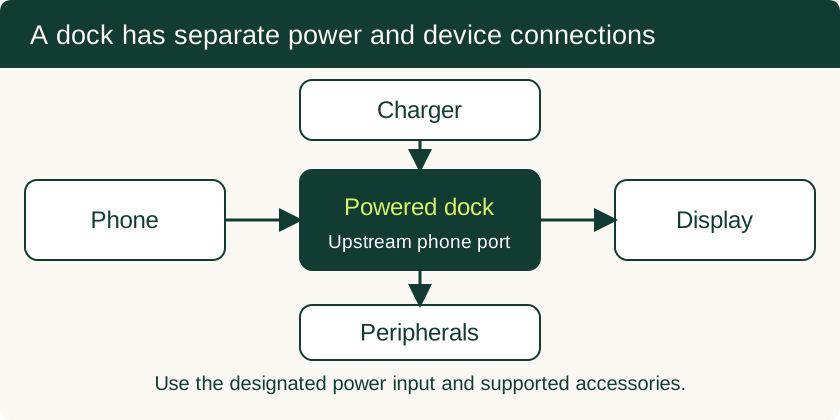
A dock with a USB-C power input can accept a compatible charger while providing a display output and peripherals. Check the dock’s instructions for the upstream phone port and power-input port. The adapter rating includes its power budget; the dock and attached devices may consume some of it. Read the phone maker’s requirements before assuming that a dock supports full charging speed.
Apple specifies up to 4.5 W for charging small compatible accessories from iPhone 15 and later. That accessory-output ceiling is different from the power a phone can receive through a powered dock. If a display or storage device needs more power than the host can provide, follow its external-power instructions.
DisplayLink and wireless alternatives
Synaptics DisplayLink uses USB graphics technology rather than requiring native DisplayPort output from the host. For Android, confirm the current DisplayLink app, Android version and dock support before purchase. Screen-capture permission, protected content and app behavior can constrain what appears on the display. A generic USB-C to HDMI cable is not a DisplayLink device.
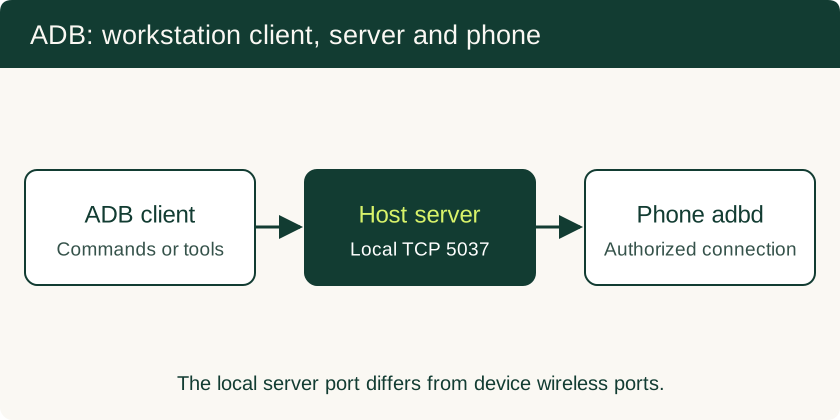
Wireless casting is another option when the phone and receiver support the same system. For a computer display and an authorized Android device, scrcpy and ADB provide a separate software-mirroring path. These methods have different setup, performance and security requirements from native video.
Buying checklist
Record the exact handset, display input and desired resolution. Confirm the adapter’s host compatibility and whether it needs an app, external power or a particular cable. For desk use, also list keyboard, mouse, storage and Ethernet needs; a dock that displays video may still have limits on simultaneous peripherals. Keep a return option for a combination the vendor has not tested. Continue with mobile-to-PC connectivity for file transfer and wireless-workflow checks.
Related Technical Guides
USB Debugging on Android: ADB Authorization, Wireless Pairing and Safe Recovery
Set up trusted ADB connections, collect diagnostics, use scrcpy appropriately and remove workstation access after troubleshooting.
Read technical guide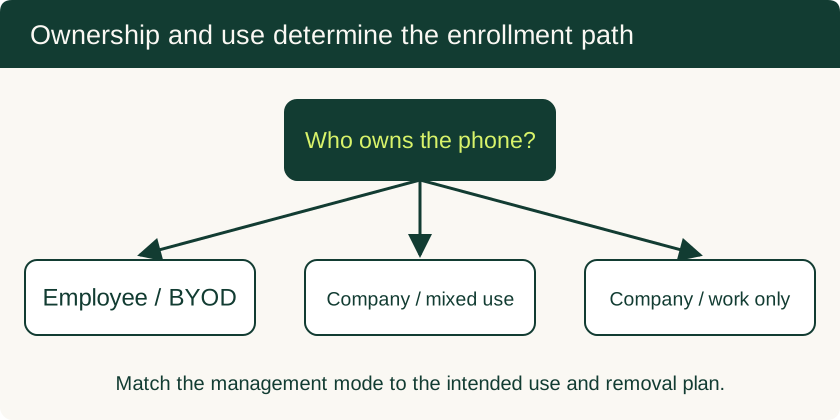
Mobile Device Management for Small Business: BYOD and Company-Owned Setup
Compare enrollment choices, evaluate MDM costs and controls, pilot deployment and test removal of work data before a wider rollout.
Read technical guide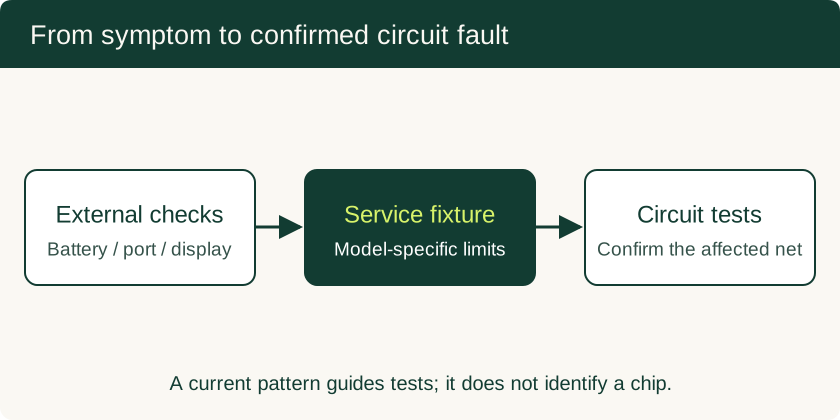
Phone Motherboard Repair: PMIC Diagnosis, BGA Rework and Data Recovery
Understand how technicians narrow down board faults, what BGA rework involves, and which repair decisions preserve the chance of local data recovery.
Read technical guide