Mobile-to-PC Connectivity: Displays, Docks, File Transfer and Mirroring
Choose a reliable phone-to-computer workflow for external displays, USB or local-network transfers, scrcpy control and desk peripherals.
A phone-to-PC workflow may involve several independent capabilities: USB file transfer, native display output, software mirroring, charging and peripheral control. Decide which task matters first, then check the handset, cable and host software for that task. A dock’s connector count does not establish phone compatibility.
For a monitor, verify the exact phone's native display support. For files, choose a supported USB or local-network transfer method. For Android screen control, use an authorized ADB connection with scrcpy. Check charging and peripheral requirements separately when combining them through a dock.
Choose a connection method
| Task | Connection | Main checks |
|---|---|---|
| TV or monitor output | Native DisplayPort through USB-C, or compatible wireless casting | Exact handset, adapter, cable and display mode |
| Large file copy | USB data connection and supported file-transfer software | Cable speed, unlocked phone, storage access and host support |
| Nearby wireless transfer | Platform sharing or a trusted LAN transfer tool | Receiver compatibility, authentication and local-network reachability |
| Android screen control | ADB plus scrcpy | Host authorization, supported encoder and suitable resolution |
| Desk keyboard, mouse or storage | USB host accessories through a compatible hub | Phone support, power budget, file system and app behavior |
Native display output and dock selection
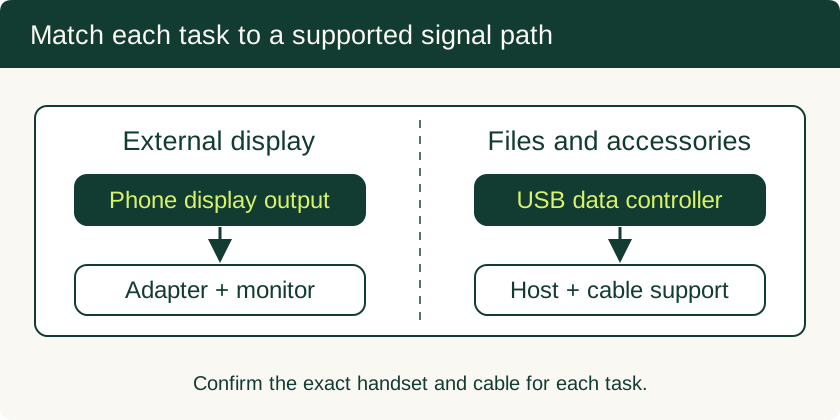
VESA describes how DisplayPort can use the USB-C connector. Native display support is separate from USB data speed. Apple’s USB-C guide lists external-display models separately from its USB 3 models. iPhone 16e and 17e are excluded from native USB-C display output. Google’s Pixel projection guide covers wired displays on Pixel 8 and later.
Before buying a dock, list the desired display resolution, keyboard, mouse, storage, Ethernet and simultaneous charging needs. Check its host requirements and supported combinations. Test the display alone first, then add accessories individually. A phone may mirror its screen rather than provide a desktop interface; that behavior depends on its software and apps.
For a model matrix and black-screen troubleshooting, use the USB-C to HDMI adapter guide.
USB file transfers: speed, access and verification
Apple lists up to 10 Gbit/s USB 3.2 Gen 2 for iPhone 15 Pro, 16 Pro, 17 Pro and 18 Pro models and iPhone Duo when used with a suitable USB 3 cable. This is the link capability, not a guaranteed file-copy rate. Storage speed, host software, file sizes and conversion can all affect elapsed time. The included iPhone charge cable supports USB 2 data speed.
For Android, follow Google’s USB file-transfer instructions: unlock the device, connect a data-capable cable, select the relevant USB file-transfer option and use compatible host software. If files are missing, confirm the selected folder and whether the app stores them in private storage. Export through that app when required.
Copy a small test file first and open it on the receiver. For valuable archives, keep the source until you have checked the destination and backed it up. Avoid treating a charging connection as proof that the cable carries data.
Local-network transfer and synchronization
Use the platform’s supported nearby-sharing tool or a trusted transfer application on both devices. Google’s Quick Share for Windows instructions describe device and connection requirements for that workflow. For LAN tools, keep both devices on a reachable network and check whether guest Wi-Fi or client isolation blocks peers.
For repeated folder synchronization, decide which device owns the original files, how conflicts are resolved and whether deletions propagate. Test a small folder before enabling automatic sync. Keep a backup outside the synchronized folder so an accidental deletion is recoverable. A Wi-Fi connection’s advertised link rate does not establish transfer throughput; compare an actual file copy under the conditions you will use.
ADB and software screen mirroring
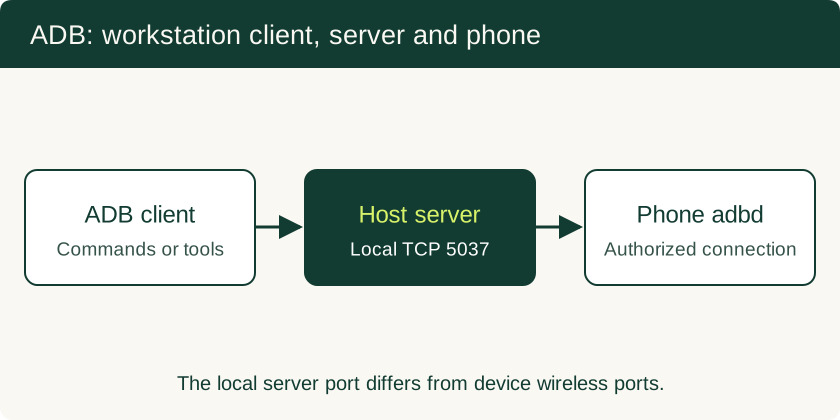
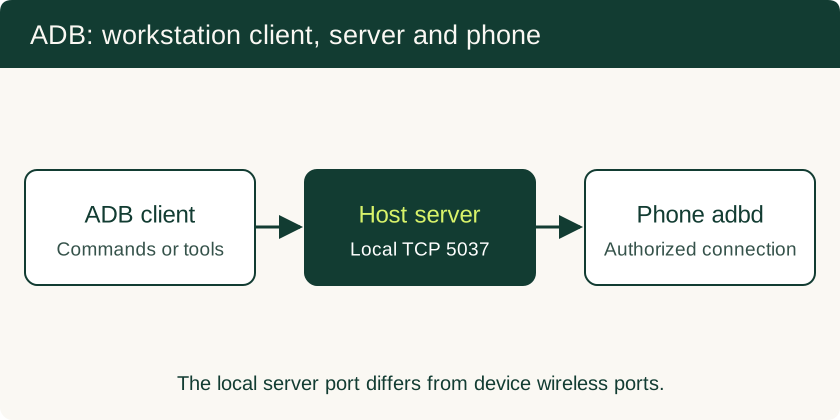
ADB connects the workstation client through its local server to the phone daemon. The local server normally uses TCP port 5037. Authorize your own computer on the phone before using commands or screen-control software. Android 11+ Wireless debugging uses a pairing workflow; its device ports are separate from the workstation server port.
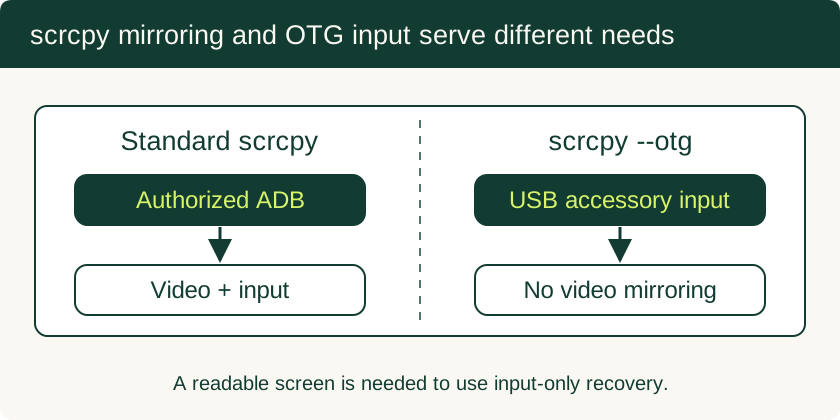
Genymobile’s scrcpy mirrors and controls supported Android devices through ADB. Performance depends on the phone, encoder, transport, requested resolution and workload. Start over USB to establish a working baseline. To improve responsiveness, reduce requested resolution or frame rate, reduce competing workloads and check network conditions before changing several settings at once.
--otg is a different mode: it supplies keyboard and mouse input without ADB but does not mirror video or audio. A readable phone display remains necessary for practical use. Follow the ADB authorization and broken-screen guide for setup and recovery conditions.
Build a stable mobile desk
Connect only the required peripherals initially. Confirm that storage mounts, keyboard layout is correct, the pointer works in the intended apps and the phone charges while in use. A powered hub may help accessories with higher power requirements, but use the dock’s designated power input and supported adapter. Keep the device ventilated during long screen-sharing or charging sessions.
For work data, apply the organization’s mobile-device security policy before enabling debugging, pairing personal computers or copying corporate files. At the end of a diagnostic session, disable debugging and remove unneeded authorizations.
More in Mobile-to-PC Connectivity
USB Debugging on Android: ADB Authorization, Wireless Pairing and Safe Recovery
Set up trusted ADB connections, collect diagnostics, use scrcpy appropriately and remove workstation access after troubleshooting.
Read technical guide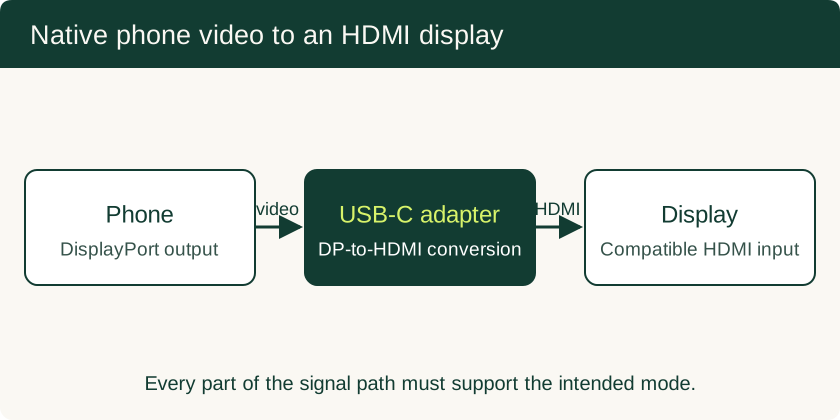
USB-C to HDMI Adapter for Phone: Compatibility and Black-Screen Checks
Check native video support separately from USB data speed, choose the right adapter, and understand powered docks and DisplayLink alternatives.
Read technical guide