USB Debugging on Android: ADB Authorization, Wireless Pairing and Safe Recovery
Set up trusted ADB connections, collect diagnostics, use scrcpy appropriately and remove workstation access after troubleshooting.
USB debugging lets a computer communicate with Android through Android Debug Bridge (adb). It is useful for development, logs and authorized troubleshooting. Because an authorized computer can issue powerful commands, enable it for a specific task and manage which computers retain access.
Enable USB debugging in Developer options, connect your own computer and approve its authorization prompt on the unlocked phone. For Android 11 and later, use Wireless debugging pairing when working over Wi-Fi. When finished, disable debugging, revoke USB authorizations as appropriate and separately forget wireless pairings you no longer need.
Connection methods and limits
| Method | What it provides | Requirement or limitation |
|---|---|---|
| USB ADB | Commands, file transfer and diagnostic access | USB debugging and host authorization on a data-capable cable |
| Wireless debugging | Paired ADB over Wi-Fi | Android 11+; phone and workstation on a suitable network |
Legacy adb tcpip |
Network ADB transport | Separate from modern pairing; use only a trusted isolated network and close it afterward |
| Standard scrcpy | Screen mirroring and input | Working authorized ADB connection |
scrcpy --otg |
Keyboard and mouse input through accessory mode | USB connection; no screen or audio mirroring |
The Android Developers ADB guide documents authorization, wireless pairing and command use. Genymobile’s scrcpy documentation explains the mirroring and input requirements.
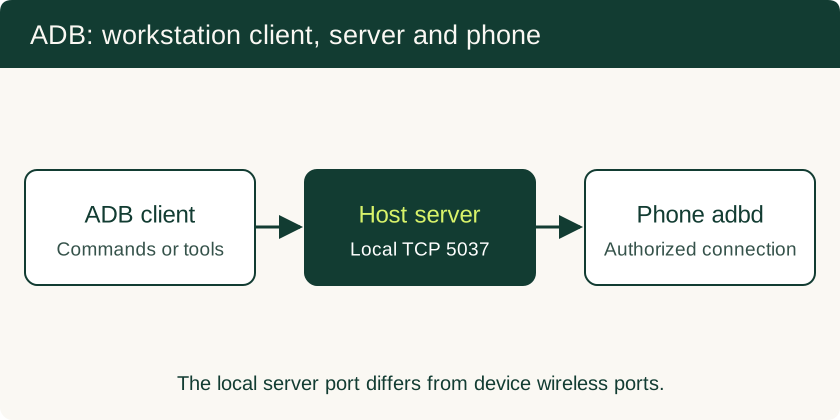
How the client, server and daemon connect
The command-line client sends requests to an ADB server on the workstation. The server normally listens on local TCP port 5037 and manages connections to the adbd daemon on devices. That workstation port is different from the device’s wireless pairing and connection ports.
Android 4.2.2 and later prompt for approval of an RSA key when an unfamiliar computer attempts a debugging connection. Unlock the phone and approve only the computer you intentionally connected. Retained authorization can allow later access by that workstation without repeating the prompt, so protect the computer account and its ADB keys. Key authorization is not a substitute for protecting a lost or compromised computer.
Set up a wired session
- Install the official Android SDK Platform-Tools for your operating system.
- Enable Developer options using the phone maker’s settings instructions. On many phones, this involves tapping Build number seven times.
- Turn on USB debugging, connect a data-capable USB cable and unlock the handset.
- Run
adb devices -l. Approve the expected computer prompt on the phone. Leave persistent authorization off on a shared workstation. - If the device is
unauthorized, address the phone prompt first. If it is absent, check the cable, USB connection and any required Windows driver before restarting tools.
Commands execute with the privileges granted to ADB by that Android build. Production-device protections still restrict private application data. Treat logs and bug reports as sensitive: they can contain identifiers, app activity and diagnostic details.
Collect logs and inspect battery state
adb devices -l
adb shell dumpsys battery
adb logcat -d > android-log.txt
adb bugreport bugreport.zip
These commands list devices and collect diagnostics; review the generated files before sharing them. If multiple phones are connected, select the intended device with adb -s SERIAL before issuing a command. File copying through adb pull is limited to locations that the session can access; it does not replace an app’s supported backup or export workflow.
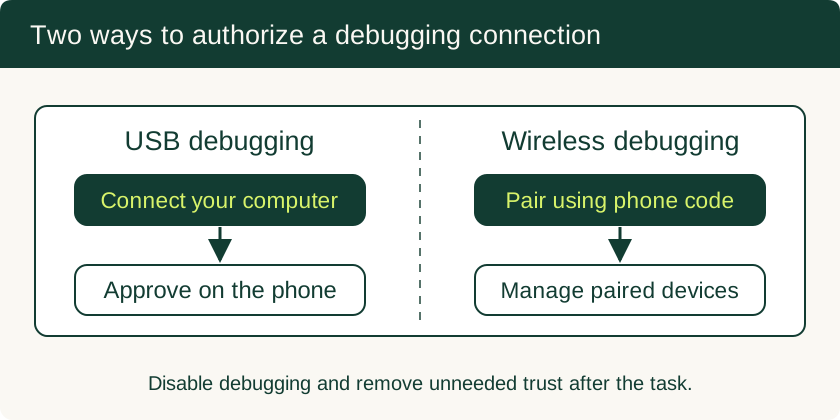
Pair wireless debugging on Android 11+
Connect the computer and phone to the same suitable Wi-Fi network. In Developer options, open Wireless debugging, then Pair device with pairing code. Use the address and pairing port shown on that screen:
adb pair PHONE_IP:PAIRING_PORT
adb connect PHONE_IP:CONNECTION_PORT
adb devices -l
Replace the uppercase labels with the phone’s displayed values. The pairing port and connection port can differ. Discovery may connect a paired device automatically; use the displayed connection address when it does not. Corporate Wi-Fi isolation or blocked discovery can prevent connection even when pairing succeeded.
The legacy adb tcpip workflow is separate from modern wireless pairing and lacks its TLS transport protection. Its authorization behavior depends on the device configuration; opening the port does not universally mean that RSA authorization disappears. Avoid exposing ADB through a router or public network. If you enabled legacy network mode, return it to USB with adb usb and disable debugging after the task.
Broken screen: choose a usable control path
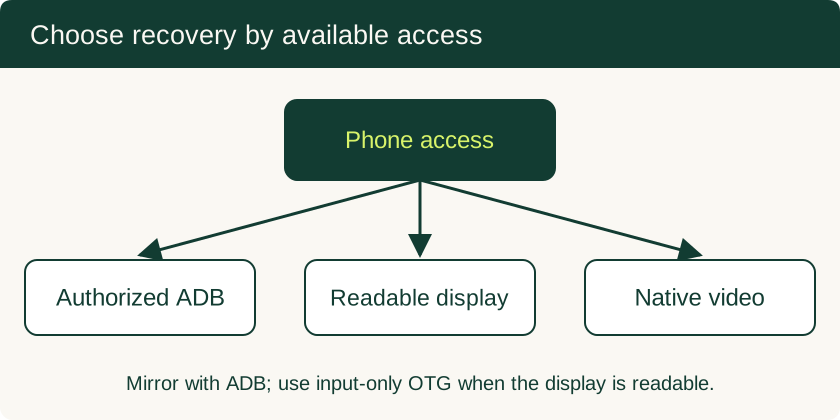
If debugging already works with a trusted computer, standard scrcpy may let you view and operate the phone. You still need the owner’s credentials where the device requests them. Actual video performance depends on encoder support, resolution, connection and workload; lower the requested resolution or frame rate when responsiveness suffers.
If touch is broken but the phone’s display remains readable, scrcpy OTG mode can provide keyboard and mouse input without USB debugging. It sends input only: it does not display the phone screen on the computer. Follow the project’s platform-specific requirements, particularly on Windows. A compatible physical USB mouse is another possible input route.
If both touch and visible output are unavailable, first check the model’s native external-display support. Otherwise, a repairer may need to restore a working display. ADB cannot simply approve its own authorization prompt or bypass an unknown passcode. Preserve the original board when local data recovery matters.
Close the session
Turn off USB and Wireless debugging when finished. Use Revoke USB debugging authorizations to remove retained USB trust when needed; open Wireless debugging’s paired-device list and forget unwanted workstations separately. For public charging, use your own compatible power adapter or power bank and avoid approving unexpected data or debugging prompts. Return to the connectivity overview for everyday transfer options that do not require debugging.
Related Technical Guides
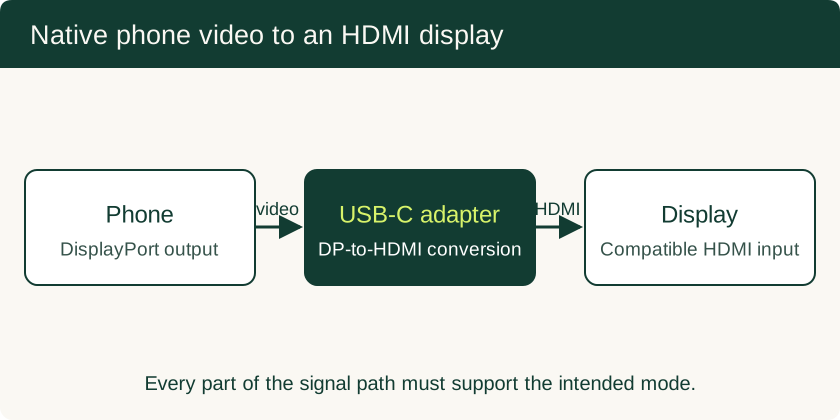
USB-C to HDMI Adapter for Phone: Compatibility and Black-Screen Checks
Check native video support separately from USB data speed, choose the right adapter, and understand powered docks and DisplayLink alternatives.
Read technical guide
Mobile Device Management for Small Business: BYOD and Company-Owned Setup
Compare enrollment choices, evaluate MDM costs and controls, pilot deployment and test removal of work data before a wider rollout.
Read technical guide
Phone Motherboard Repair: PMIC Diagnosis, BGA Rework and Data Recovery
Understand how technicians narrow down board faults, what BGA rework involves, and which repair decisions preserve the chance of local data recovery.
Read technical guide