Ghost Touch: Charger Noise vs Digitizer
Isolate smartphone ghost touch caused by charger switching noise, moisture, screen protectors, or apps from digitizer hardware faults before wiping or repairing.
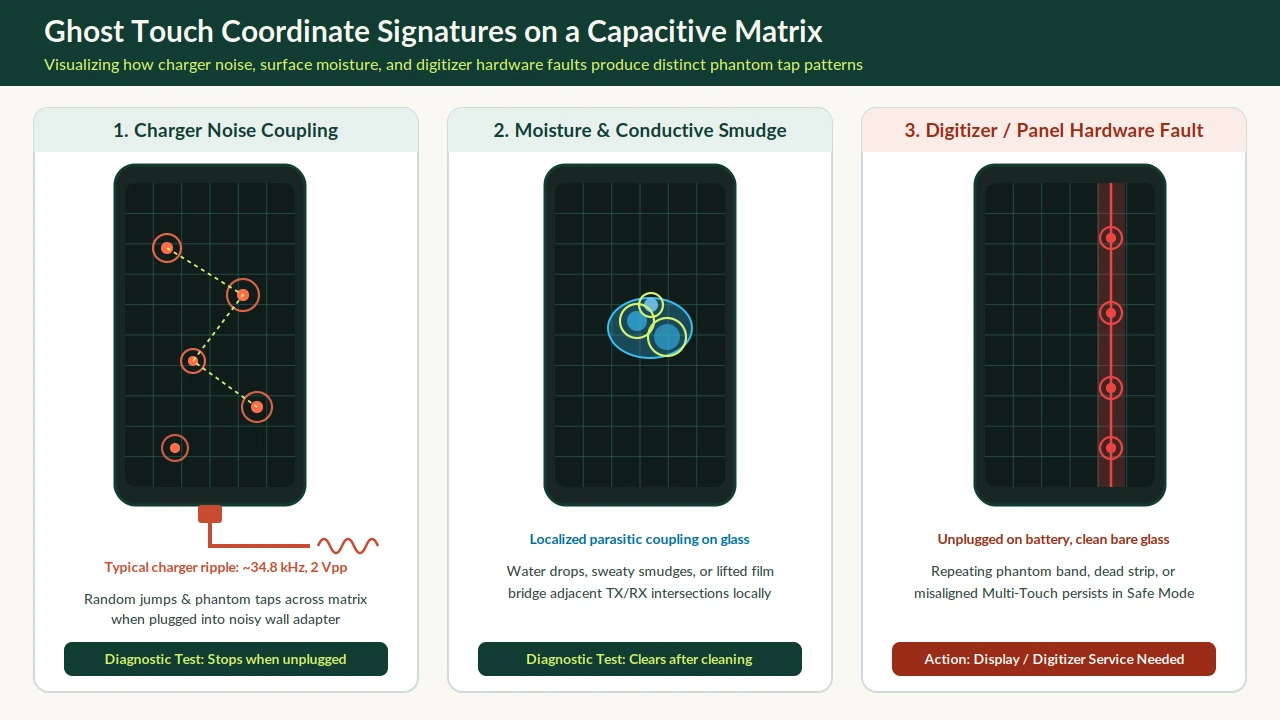
Ghost touch happens when a smartphone capacitive touchscreen registers taps, swipes, or holds without physical finger contact because electrical interference, surface moisture, screen-protector attenuation, or digitizer hardware faults distort the touch panel signal. Unplugging the charger, cleaning bare glass, and testing in Safe Mode separate external noise from a failing screen before you wipe data or replace hardware.
Disconnect any USB-C or Lightning cable first: if erratic taps stop on battery power, the wall charger, cable, or outlet is injecting noise rather than the screen failing. Next, wipe away moisture and conductive smudges, remove cases or screen protectors, map phantom coordinates with built-in touch diagnostics, and check Safe Mode before scheduling display service.
What is ghost touch on a smartphone screen?
Ghost touch is a false capacitive input event in which the touch controller interprets electrical noise, surface contamination, or sensor distortion as an intentional finger tap on the display. Because projected-capacitive panels measure minute capacitance changes across an electrode grid, anything that mimics a finger’s electrical disturbance can trigger phantom touches or make a phone screen touch not working predictably.
Modern smartphones rely on projected-capacitive touchscreen panels built from two crossed, patterned conductive layers arranged in a matrix, as documented in the Sensors capacitive touchscreen review. In the dominant mutual-capacitance architecture, a finger alters the local electric field between crossing electrodes and reduces the overlap mutual capacitance, which a charge amplifier reads as an output voltage shift compared with the untouched baseline.
Mutual-capacitance grids measure every intersection separately to support unlimited multi-touch tracking, whereas older self-capacitance scanning reads vertical and horizontal axes sequentially against ground and can generate ghost touch locations when multiple points are sensed at once. Even on mutual-capacitance smartphones, the tiny capacitance shift produced by a finger leaves the readout sensitive to stray capacitance—which Wikipedia’s capacitive sensing reference notes can fluctuate between roughly 10 pF and 10 nF unless shielded to a low-impedance ground reference.
Why moisture, smudges, and thick glass confuse capacitive sensors
Because finger-induced parasitic capacitance is very small, external contaminants such as water droplets and dust on the cover glass can be recognized as touches. Conductive smudges from sticky or sweaty fingertips in high-humidity environments, along with dust adhering to that fingertip moisture, also interfere with sensing across the panel surface.
Projected-capacitive touchscreens can operate without direct bare-glass contact behind protective layers or screen protectors, yet thicker cover glass rapidly weakens the mutual-capacitance fringe-field change between the finger and the sensor electrodes according to the Sensors capacitive readout circuit review. When a thick, lifted, or damaged protector reduces signal strength while trapping moisture or debris, the touch controller loses margin against everyday electrical noise.
Why do noisy chargers and 120 Hz AMOLED screens cause ghost touch?
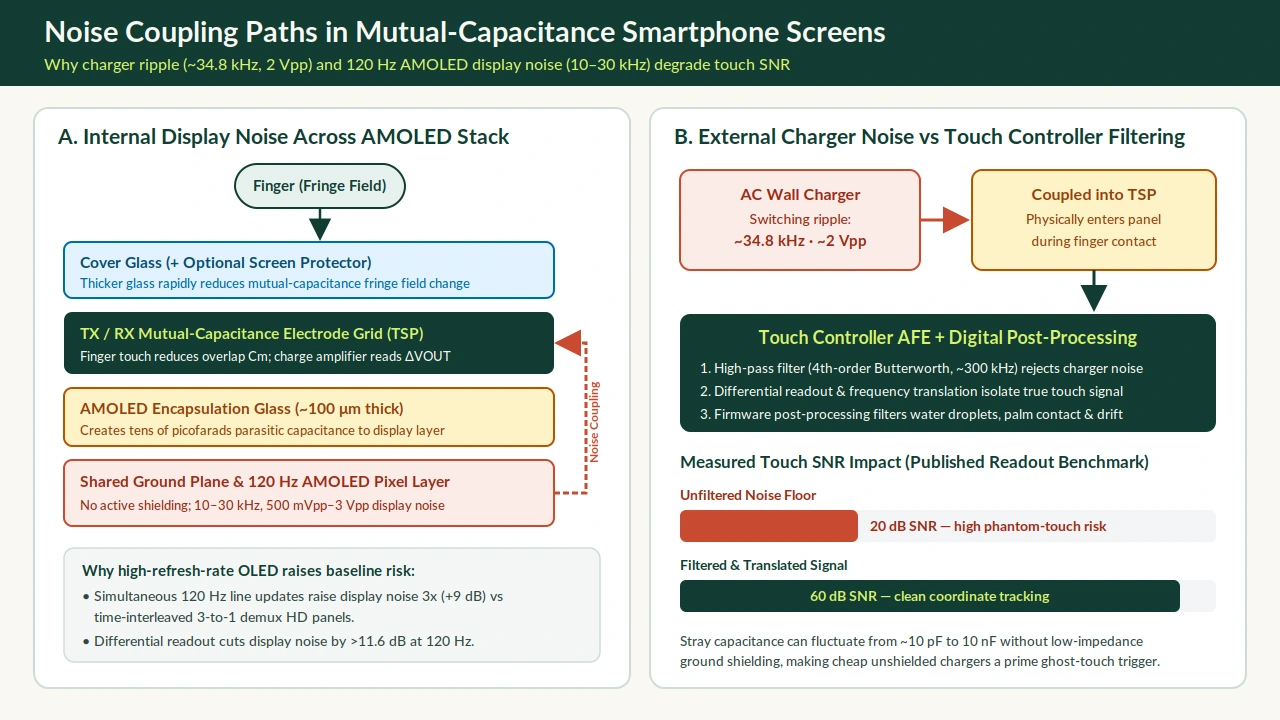
Switching battery chargers and high-refresh-rate display panels are the two dominant electrical noise sources inside a touch system, and their combined interference can overwhelm the touch controller’s signal-to-noise ratio. When charger switching ripple physically couples into the touch screen panel during contact, coordinate accuracy drops and the likelihood of false or phantom touches rises sharply.
In peer-reviewed measurements reported in the Sensors OFDM touch sensing study, typical battery-charger noise coupling into a touch screen panel sits around 34.8 kHz with an amplitude near 2 Vpp. Display noise conducted directly from the panel beneath the touch layer is nearly periodic from 10 kHz to 30 kHz with random amplitudes spanning 500 mVpp to 3 Vpp.
How AMOLED stackup and 120 Hz refresh rates narrow noise margin
On AMOLED smartphones, touch electrodes are printed directly onto the encapsulation glass that shields organic pixels from oxidation and physical damage, forcing the AMOLED pixel layer and touch readout circuit to share a ground plane without active ground-plane shielding, as detailed in the Sensors high-refresh-rate AMOLED readout study. Across encapsulation glass roughly 100 μm thick, parasitic capacitance between the display and touch electrodes grows to tens of picofarads.
Driving high-resolution 120 Hz panels without time-interleaved 3-to-1 horizontal demultiplexing raises display noise voltage by three times—a 9 dB penalty—compared with lower-refresh HD panels. Touch readout ICs counter these noise floors with differential sensing, which cuts display noise by more than 11.6 dB at a 120 Hz scan rate, and analog front-end high-pass filtering such as a fourth-order Butterworth filter near a 300 kHz cutoff paired with frequency translation that lifts touch SNR from 20 dB before filtering to 60 dB after filtering.
| Interference Source | Measured Signal Characteristics | Coupling Mechanism | Primary Isolation Test |
|---|---|---|---|
| Switching battery charger | Typical frequency around 34.8 kHz, amplitude near 2 Vpp | Physically couples into touch screen panel during finger contact | Unplug USB-C or Lightning cable and test on battery power |
| Internal display switching | Nearly periodic 10 kHz to 30 kHz, amplitude 500 mVpp to 3 Vpp | Conducts directly through thin encapsulation glass and shared ground | Compare differential touch stability across clean bare-glass test |
| High-refresh 120 Hz AMOLED | Display noise voltage increases 3x (9 dB) over 3-to-1 demux HD | Shared ground plane across roughly 100 μm encapsulation glass | Check for OS firmware updates and hardware panel faults |
| Unshielded stray capacitance | Fluctuates between roughly 10 pF and 10 nF without ground shield | High-impedance signal line picks up ambient electrical coupling | Swap to known-good grounded adapter, cable, and clean outlet |
| Water droplets and conductive smudges | Localized capacitance shift across adjacent sensor nodes | Sweat, humidity, water, or trapped dust bridge surface electrodes | Clean and dry screen thoroughly, then remove screen protector |
If your handset also charges slowly or heats up while plugged into a suspect adapter, follow the slow-charging amperage and thermal throttling guide to validate your cable and power supply before suspecting the screen.
How do you troubleshoot a misbehaving touch screen step by step?
Start troubleshooting by removing external electrical and physical variables in sequence—charger first, then surface contamination, then screen protectors and cases, then software—so you identify the real cause without erasing personal data. Skipping straight to a factory reset wastes time when a noisy wall adapter or damp screen protector is the culprit.
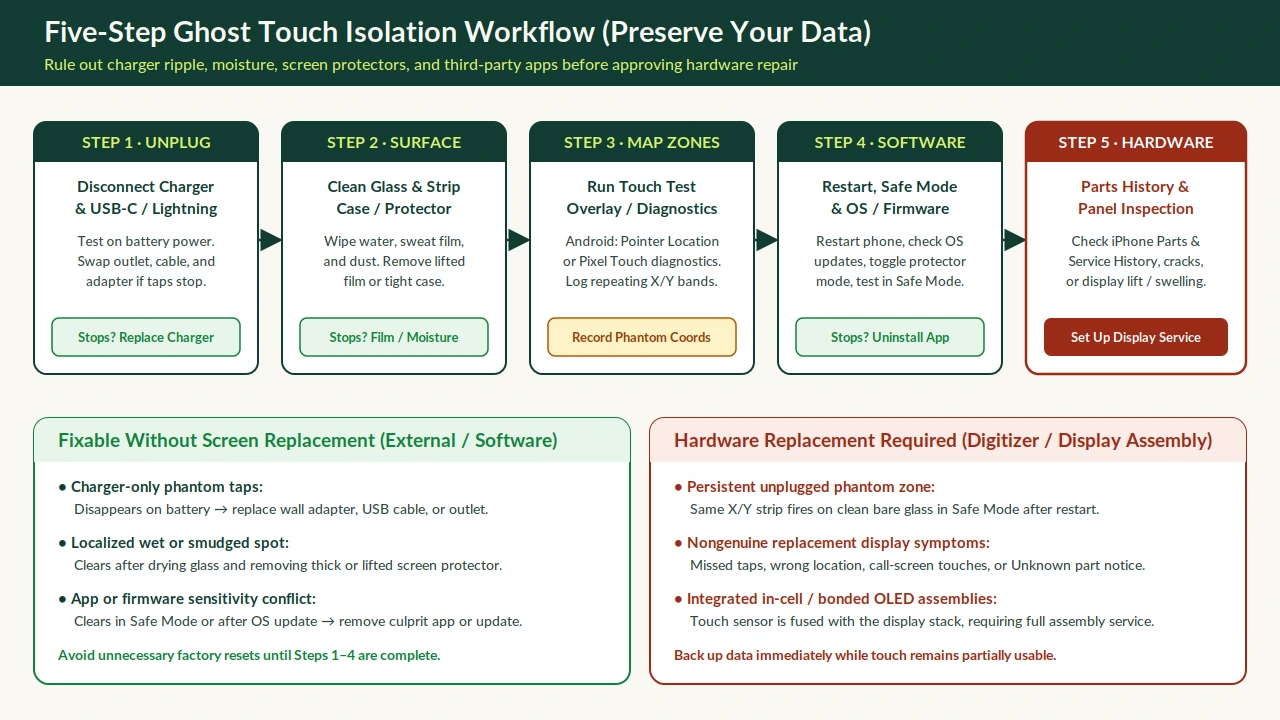
- Disconnect all USB-C or Lightning accessories: Apple Support advises unplugging every Lightning or USB-C accessory and testing touch response on battery power; if the screen behaves normally unplugged, test a different wall outlet, charging cable, or power adapter to pinpoint the noisy component.
- Clean and completely dry the display glass: Wipe off water droplets, oily sweat smudges, and dust so conductive films cannot bridge nearby capacitive electrodes.
- Remove tight cases and damaged screen protectors: Peel off lifted, cracked, or overly thick tempered glass films and remove rigid cases pressing against display bezels, then retest bare glass.
- Restart the device and isolate software: Reboot to clear transient touch-controller firmware states, install pending system updates, and test in Safe Mode on Android before suspecting hardware.
- Check proximity-sensor call behavior and physical condition: Keep the top proximity sensor unobstructed so the display turns off normally during calls and avoids accidental cheek taps; inspect the frame for lift or swelling that warrants checking the phone battery health and swelling guide.
For broader subsystem triage across display, battery, charging, and board symptoms, consult the smartphone hardware diagnostics hub.
How do you run a ghost touch test to map phantom tap zones?
Use built-in system touch overlays and manufacturer diagnostic screens to record exact X and Y coordinates of phantom hits without installing ad-heavy third-party apps. Mapping whether false taps scatter randomly across the glass or lock onto one vertical or horizontal strip distinguishes electrical interference from a damaged electrode line.
Android Developer Options: Pointer Location and Show taps
Android Developers documentation details two built-in overlays inside Developer options that turn any Android phone into a visual touch-coordinate logger:
- Enable Developer options: Open your device’s About phone settings and tap Build Number seven times until the system confirms developer mode is enabled.
- Turn on Show taps: Under the Input section, enabling Show taps draws a visible circle beneath every registered touch event, making phantom taps immediately visible even while you hold the phone without touching the glass.
- Turn on Pointer Location: Enabling Pointer Location displays full-screen cross-hairs, opens a coordinate bar across the top of the screen tracking live X and Y positions, and draws continuous pointer paths so you can photograph repeating phantom bands or jitter lines.
Google Pixel Touch diagnostics and iPhone symptom checks
Google Pixel Phone Help documents a built-in diagnostic screen on supported Pixel models under Settings, Display and touch, Touch diagnostics, allowing you to verify dead zones and response accuracy directly inside the operating system. On iPhone, compare touch tracking in a plain drawing canvas such as Notes both while plugged in and unplugged on bare glass, and check whether touches register unexpectedly during calls or along display edges.
What fixes ghost touch on Android phones without wiping data?
Most non-hardware ghost touch cases on Android resolve without a factory reset by adjusting touch-sensitivity modes, booting into Safe Mode to catch rogue apps, and installing firmware updates that refine digital noise filtering. Digital post-processing in modern touch controllers can update programmable noise filters through firmware updates to compensate for temperature drift, water droplets, and palm contact.
- Test Safe Mode to isolate downloaded apps: Google Pixel Phone Help explains that if touch behavior works normally while booted in Safe Mode, a downloaded third-party app is most likely causing the issue; restart normally and uninstall recently added apps one by one instead of wiping the phone.
- Toggle Screen protector mode or sensitivity settings: Under Display and touch settings on Pixel phones, turning Screen protector mode off or on matches gain sensitivity to whether bare glass or protective film is installed.
- Install pending OS and firmware updates: Because post-processing filters are programmable after manufacturing, system updates can deliver improved noise rejection and palm-rejection tuning without erasing user data.
- Verify proximity-sensor clearance: Remove stickers or misaligned protectors near the top bezel so the proximity sensor reliably turns the display off during phone calls and prevents accidental face taps.
Why does ghost touch happen on iPhone after drops or third-party screen repairs?
Impact damage and nongenuine display assemblies disrupt capacitive alignment, ground shielding, and iOS touch calibration, producing intermittent phantom touches or unresponsive bands even when the phone is unplugged. In integrated display modules where touch electronics merge with the panel stack, mechanical shock or aftermarket part variance degrades touch accuracy directly.
Apple Support warns that nongenuine iPhone display parts can cause degraded Multi-Touch performance—including missed touches or touches registering in the wrong location—unexpected touches during phone calls, and accidental edge or palm touches. If your iPhone had a screen replacement, verify its display status before paying for another repair:
- Open Settings, tap General, tap About, and scroll to Parts and Service History.
- Check whether Display reports an Unknown message, which Apple Support states appears if the display is not a genuine Apple part, is not functioning as expected, was modified, or was not verified after repair.
- Compare the layer stack and replacement trade-offs in our OLED vs LCD phone screen replacement guide before selecting a replacement assembly.
When can ghost touch be fixed permanently vs needing a screen replacement?
Ghost touch can be fixed permanently at home whenever removing a noisy charger, drying moisture, peeling off a damaged protector, updating firmware, or removing a faulty app restores clean bare-glass touch tracking. When phantom taps keep firing on battery power with clean bare glass after restarting and testing Safe Mode, the fault lies in the digitizer or display hardware and requires professional replacement.
Because embedded in-cell touch designs merge panel and touchscreen electronics into a single driver integrated circuit, a damaged touch layer or cracked sensor trace cannot be calibrated away in software. Apple Support explicitly directs users to set up device service when touch problems persist after cleaning the screen, disconnecting accessories, removing cases or protectors, and restarting.
| Observed Diagnostic Pattern | Most Likely Root Cause | Permanent Fix Path | Hardware Replacement Needed? |
|---|---|---|---|
| Phantom taps happen only while plugged in; stops immediately on battery | Switching charger noise (around 34.8 kHz, 2 Vpp) or noisy outlet/cable | Replace charger, USB-C or Lightning cable, or wall outlet | No — external power accessory fault |
| Erratic touches localize around droplets, sweat, or high humidity | Water or conductive smudges bridging surface capacitance nodes | Dry and clean bare glass; replace lifted or thick protector | No — surface contamination issue |
| Touch works properly in Android Safe Mode but glitches in normal boot | Third-party overlay or downloaded app interference | Uninstall recently installed apps one by one | No — software conflict |
| Repeating phantom strip or dead zone persists unplugged on bare glass in Safe Mode | Damaged mutual-capacitance electrode trace, in-cell panel, or connector | Back up data and schedule display assembly service | Yes — digitizer or display assembly fault |
| Missed taps, misplaced touches, or call touches with Unknown display notice | Nongenuine, unverified, or malfunctioning aftermarket display assembly | Replace with verified genuine display assembly and complete calibration | Yes — display assembly replacement |
Frequently asked questions about ghost touch
Can a cheap phone charger really cause ghost touch?
Yes. Peer-reviewed touch controller measurements report typical battery-charger noise characteristics of about 34.8 kHz and 2 Vpp that physically couple into the touch screen panel during finger contact and increase false or phantom touches. Unplugging the USB-C or Lightning cable immediately confirms whether the charger is the trigger.
Will a factory reset fix ghost touch on a smartphone?
A factory reset only resolves software conflicts and will not fix charger interference, conductive screen smudges, a damaged screen protector, or a failing capacitive digitizer. Always test on battery power, clean bare glass, and check Safe Mode first so you do not lose data unnecessarily.
Does a cracked or thick screen protector cause ghost touch?
Yes. Although projected-capacitive panels work through protective glass, thicker cover layers rapidly weaken the mutual-capacitance fringe-field signal, and lifted or cracked films trap moisture and dust that register as phantom touches. Removing the protector and retesting bare glass confirms whether the film is responsible.
How can I check if my phone has a ghost touch hardware problem?
Unplug all cables, wipe the bare screen completely clean and dry, remove any case or screen protector, and open Android Pointer Location or Pixel Touch diagnostics while testing in Safe Mode. Phantom taps or repeating coordinate lines that keep firing under those conditions indicate a hardware panel or digitizer fault.
Why does my iPhone get ghost touches after a screen repair?
Apple Support documents that nongenuine or unverified replacement displays can cause degraded Multi-Touch tracking, touches registering in the wrong location, unexpected taps during phone calls, and accidental edge touches. Check Parts and Service History under Settings, General, About to see whether the display shows an Unknown notice.
Sources
- Sensors — Finger Touch Sensing IC Noise Immunity Using OFDM and Frequency Translation
- Sensors — Review of Capacitive Touchscreen Technologies and Machine Learning Approaches
- Sensors — Mutual Capacitance Touch Readout IC for High Refresh Rate AMOLED Panels
- Sensors — Readout Circuits for Capacitive Sensors
- Wikipedia — Capacitive sensing
- Apple Support — If the screen is not working on your iPhone or iPad
- Apple Support — About genuine iPhone displays
- Google Pixel Phone Help — Fix touch and response issues on your Pixel screen
- Android Developers — Configure on-device developer options
Related Technical Guides
Water-Resistance Rating Test Conditions vs Phone Water Damage: Gasket Aging, Barometric Vents, and LCI Diagnostics
Examine phone water damage through manufacturer immersion conditions, gasket wear, pressure vents, liquid-contact indicators, and connector alerts.
Read technical guide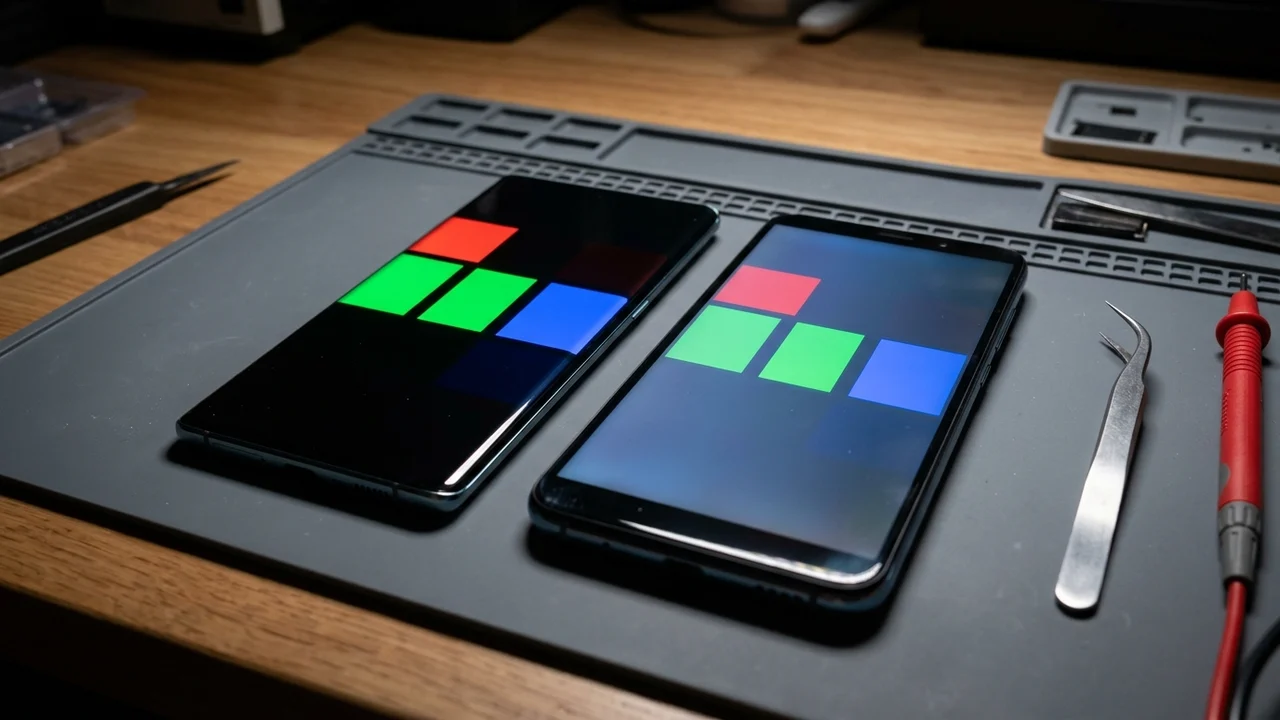
OLED vs LCD Phone Screen Replacement: Panel Bonding, Digitizer Separation, and Repair Cost Drivers
Compare OLED and LCD display layer stacks, isolate outer glass cracks from internal panel or digitizer faults, and evaluate replacement assembly trade-offs.
Read technical guide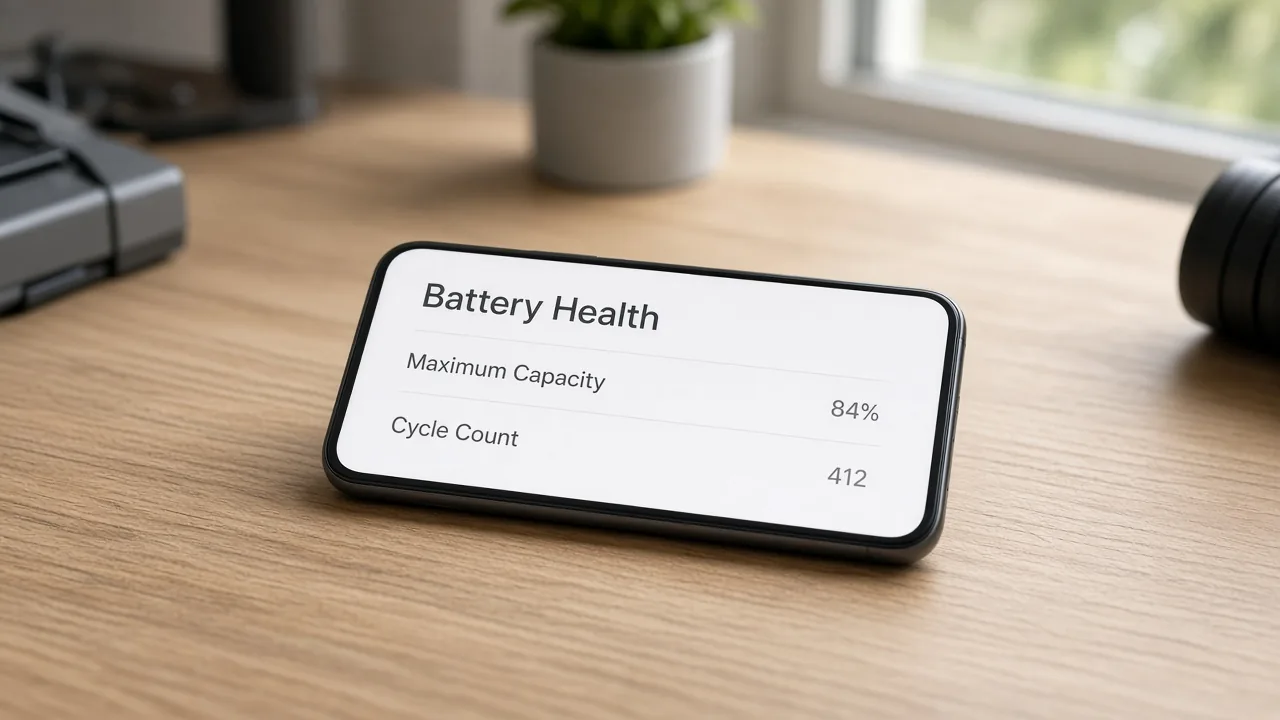
Phone Battery Health and Cycle Count Diagnostics: Coulomb Counter Drift, Internal Resistance, and 80% Cutoff
Phone battery health is a capacity ratio. Read cycle count, fuel-gauge drift, and resistance shutdowns before an 80% capacity cutoff.
Read technical guide